Making a data bundle last longer: practical tips
இந்தக் கட்டுரை தற்போது ஆங்கிலத்தில் உள்ளது.
Short answer
Most of a data bundle goes on video, automatic downloads and apps working in the background. A few changes on the phone help it last much longer: use Wi-Fi whenever it's available, turn off video auto-play, lower video call quality, keep updates and big downloads for Wi-Fi, and switch on the phone's data saver. If it still runs out early, a larger bundle may simply suit the person better.
Where the data usually goes
Messages and browsing use very little data. Video uses a lot, whether it's a video call, a clip in a social app or a film. Photos and videos that download by themselves in chat apps add up quickly, and so do app updates.
Much of this happens without the person noticing. A phone can update apps, back up photos and refresh feeds in the background, even when it sits in a pocket. That's why a bundle can seem to vanish after a few days.
Find out which apps use the most
Both Android phones and iPhones keep a record of how much mobile data each app has used. Look in the phone's settings under mobile data, cellular or data usage. The exact wording and menus differ between phones and software versions, so if it's hard to find, search the settings for "data".
The list usually makes the answer obvious. If one social app or video app sits at the top, that's where to start. Most phones also let you stop a single app from using mobile data at all, so it works only on Wi-Fi.
Settings that save data
These changes take a few minutes and work on most phones. Not every app or phone has every option, and the names vary, but the ideas are the same.
- Connect to Wi-Fi at home, at work or at a trusted place whenever it's available.
- Turn off auto-play of videos in social apps, or set it to play on Wi-Fi only.
- In messaging apps, turn off automatic download of photos, videos and documents on mobile data.
- Lower the video quality in video call apps, or use a voice call when the picture isn't needed.
- Switch on the phone's data saver or low data mode, which limits background use.
- Turn off background refresh for apps that don't need it.
- Set app updates, software updates and photo backups to Wi-Fi only.
Download on Wi-Fi, use it later
Many apps let you save things to the phone while on Wi-Fi and use them later without data. Music and video apps often have a download option. Podcasts can be saved the same way.
Maps are a good example. Most map apps let you download an area for offline use, so directions still work on a journey without using the bundle. Download it at home before setting off, and check it again from time to time, because offline maps can expire.
Choosing the right bundle size
Saving data helps, but if someone uses their phone heavily, a small bundle will still run out early. It's often better to send a bundle that fits how they really use the phone than to ask them to cut back.
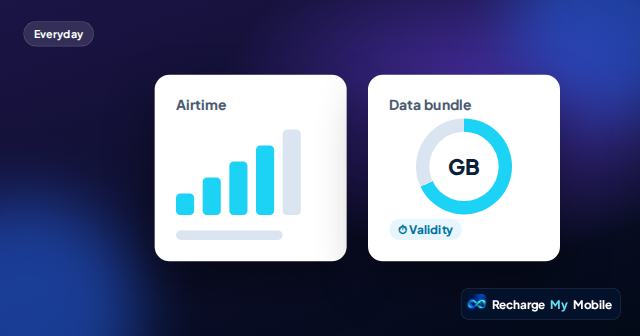
Ask what they do most: messages, voice calls, video calls or watching videos. Ask whether they have Wi-Fi at home. Then compare bundles by both the amount of data and the validity, so the data doesn't expire unused or run out halfway through.
If you're not sure how much they need, our free data calculator gives a rough idea based on everyday habits. Treat the result as an estimate, because real use depends on the apps, the video quality and the signal.
Sharing these tips with family
Not everyone is comfortable changing phone settings. If you're helping a parent or grandparent, pick the two or three changes that matter most for them, such as Wi-Fi at home and turning off video auto-play, and walk them through it on a call.
When you next see them, you can check the data usage list together. It's a simple way to see whether the changes are working.
Questions people ask
Why does my data run out so quickly?
Usually because of video, automatic downloads and apps working in the background. The data usage list in the phone's settings shows which apps use the most.
Does turning on data saver stop apps from working?
No. Apps still work, but some may load images more slowly or wait for Wi-Fi before updating or downloading things in the background.
Do offline maps work without any data?
Directions in a downloaded area usually work without data, but live traffic, search and other online features may still need a connection.
Is it better to send a bigger bundle or save data?
Both help. Simple settings stop data being wasted, but if the person uses their phone heavily, a larger bundle that suits their habits is often the better choice.